Sunday, October 09, 2011

Xcode 4 and Git

I am new to Git. I used Perforce (P4) before, so I thought it is easy to use Git. Actually I was wrong. Git is not complex, but it has different concept.

In P4, we just check out and check in files. In Git, checking in has a new name Commit. When I committed my first change, I was surprised to see it does not appear in the server. Actually, Git did not really submit my code to the server. It was stored locally. I have to run this command in the command line:

git push origin master

So you must Push the local Commits to the server.

The problem is Xcode 4 can Pull, Commit, Compare, but does not provide Push functionality. How stupid the designer is. You can modify but cannot submit! Actually Pull, Commit and Compare are the only functionalities Xcode 4 provides. You cannot even revert!

Xcode 4 is free, but Apple should not make it suck.

Update on Nov 30, 2011:

SourceTree on Mac App Store is an excellent Git client. It is much better than GitX. And it is FREE!

Tuesday, October 04, 2011

Fixing the Problem of Cocos2D Game Disappearing in iPhone Simulator

I Created a new Cocos2D game. But it did not work well in iPhone simulator. It often disappeared in the simulator. I had to relaunch the simulator or relaunch Xcode. It was very boring. I didn't know why, because this project was still very simple.

I noticed there is a warning that Info.plist is included in the target. I did the following things:

1. Renamed Info.plist to ProjectName-Info.plist

2. Changed Info.plist to the same name in the target settings

3. Removed ProjectName-Info.plist from the target

The problem fixed!

Thursday, September 29, 2011

Why Use Cocos2D Instead of UIKit to Develop Games

I am leaning Cocos2D for iPhone. I am thinking why we should use cocos2D instead of UIKit to develop games.

Here are the reasons:

1. Cocos2D is built on OpenGL. You may not know OpenGL.

2. Cocos2D supports tiled map.

3. Cocos2D helps you reduce memory cost by supporting atlas images and providing CCSpriteBatchNode.

4. Cocos2D supports parallax backgrounds.

5. Cocos2D has more animations and transitions.

6. Cocos2D supports particle systems.

Cocos2D provides physics engines, but I don't think it is one of the reasons we should use Cocos2D. Because these physics engines are not designed for Cocos2D only. If you use UIKit, you can use these physics engines too.

Friday, August 19, 2011

Add Tool Tip to Controls with Xcode4

Like many Apple developers, I was a developer on Windows platform before. It is very easy to add tool tip to a control (e.g. a button) in Visual Studio. But I don't know how to do it in Xcode. When I am working on iPhone apps, it is not a problem because iPhone apps need not tool tip. But it is a problem when I am working on Mac apps.

Actually it is easy to add tool tip in Xcode 4. Looks like Apple put it in a wrong place. You need to add tool tip in Identity Inspector.

Add ToolTip in Xcode

Monday, July 18, 2011

Making Your Mac App Support Full Screen in 1 Minute

Full screen mode is a cool feature on Mac OS X Lion. I'd like to let my app support full screen. I googled, but did not find any tutorial. I thought there would be an option like'Support full screen' when a new project is created with the new Xcode 4.1 on Lion. Surprisingly, there is no that option. Today I watched a video of WWDC2011 and made this article. I am sure you can follow the steps to make your app support full screen in 1 minute.

I created a new Mac OS X Cocoa Application with Xcode 4.1 on Lion and named it MyFullScreen.

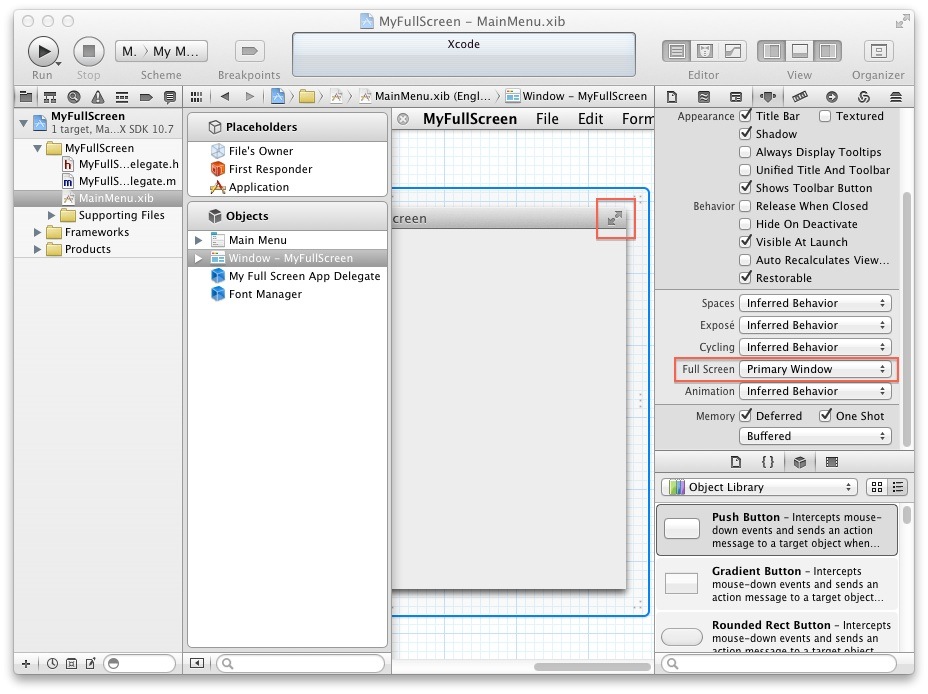
1. Set Base SDK Mac OS X 10.7

2. Choose MainMenu.xib in Project navigator

3. Choose 'Window - MyFullScreen' in Objects

4. Choose 'Primary Window' for Full Screen in Attributes inspector. You will see a new icon on the top-right corner of your main window. Run this app. It already supports full screen!

Make Full Screen

5. You need to add a menu item. Choose 'Menu - View', and then drag 'Full Screen Menu Item' in Object Library into 'Menu - View'.

Full Screen Menu Item

We are done! It is very easy.

Decreasing the iPhone/iPad app size

1. Delete unnecessary files.

2. Convert PNG images to JPG format. We like PNG because it supports transparency. But for those images without transparency, the size of png is twice of jpg file. I converted PNG files to JPG and reduced the app size from 17MB to 9MB.

3. For the universal app, iPad version could reuse retina @2x images.